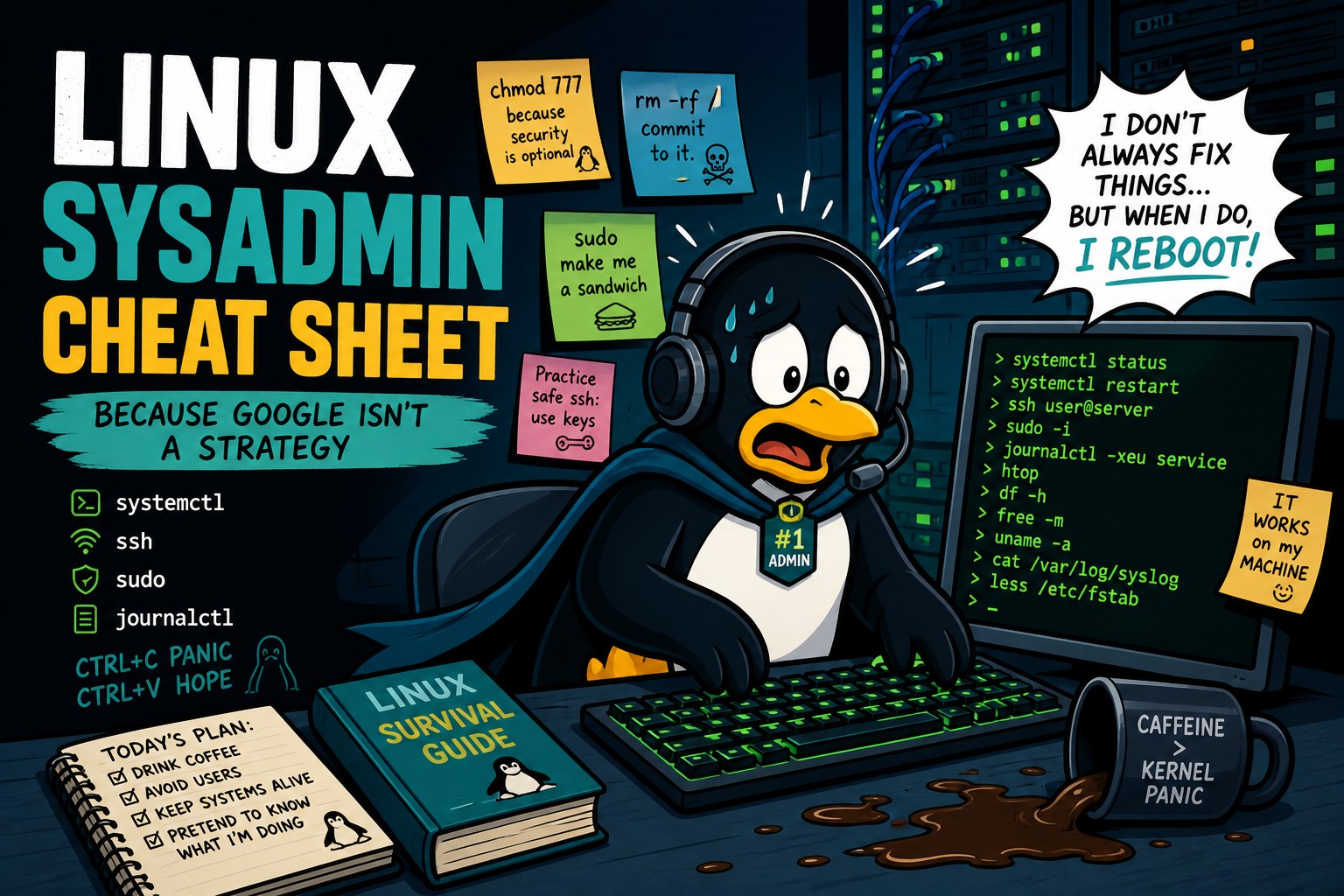
Linux is the operating system that powers the modern internet. From small personal blogs to massive cloud platforms, most of what you use online runs on Linux. Its strength is flexibility. For beginners, the hard part is often the lack of a GUI “out of the box” on servers.
This guide is not just a list of commands. It is a practical handbook. We will cover why certain tools exist, how they make an admin’s life easier, and why you should learn them now.
- Navigation and file basics
- Getting help in the terminal
- Viewing and editing configs
- Data analysis with grep and awk
- Linux filesystem layout
- Package management with APT
- Monitoring resources and processes
- Systemd: managing services
- Networking and secure remote access
- Firewall and brute-force protection
- Permissions: chmod and chown
- Logs and incident investigation
- Automation: Cron and Bash scripts
- Containers with Podman
1. Navigation and file basics
Before you configure complex services, you need to move confidently around the filesystem. Unlike Windows, where you click folders with a mouse, in Linux you “walk” directories with commands. Absolute and relative paths are the foundation of every server setup.
Key commands
pwd— show the current path (so you do not get lost).ls -lah— list files with permissions and human-readable sizes.cd /var/www— go to the website directory.cd ..— move one level up.touch file.txt— quickly create an empty file.mkdir -p project/src— create a folder structure in one command.cp config.ini config.bak— make a backup before edits (golden rule!).rm -rf folder/— delete a folder recursively (use with care!).
2. Getting help in the terminal
Many people fear Linux because they think they must memorize thousands of flags. In reality, the documentation is already installed on the system. Knowing how to find help saves hours of googling. Asking the system is often faster than searching the web.
Self-help tools
command --help       # Quick flag reference
man command          # Full manual page
apropos keyword      # Search commands by keyword
whatis ls            # One-line description of a command
Tip: in
man, press/to search inside the page andqto quit.
3. Viewing and editing configs
On a server there is no text editor with Save and Close buttons. You work in console editors. Often you do not need to change a file at all — you just need a quick look or a scan of logs for errors. Different jobs need different tools.
What to use
cat file.txt— print the whole file (best for small files).less large.log— comfortable browsing of large files with scrolling.tail -f /var/log/syslog— follow a log in real time.- Nano — beginner-friendly editor (
Ctrl+Osave,Ctrl+Xquit). - Vim — powerful editor for pros. Modes take practice, but it is extremely efficient.
4. Data analysis: grep and awk
Server logs can be gigabytes of text. Reading them by eye is impossible. Filtering tools pull out only what matters: errors, specific IP addresses, or request stats. This is the main toolkit for incident investigation.
Filtering examples
grep "error" app.log             # Find lines containing error
grep -i "warning" sys.log        # Case-insensitive search
grep -v "debug" app.log          # Show everything EXCEPT debug lines
awk '{print $1}' access.log      # Print only the first column (often IP)
df -h | awk '{print $5}'         # Disk usage percentage
5. Linux filesystem layout
In Windows, software is scattered across folders like Program Files, AppData, and Windows. Linux follows the FHS (Filesystem Hierarchy Standard). Knowing this layout helps you instantly find configs, logs, and binaries across distributions.
| Directory | Purpose | Why it matters |
|---|---|---|
/etc | Configuration | Service settings live here (nginx, ssh, mysql) |
/var | Variable data | Logs, databases, caches, mail |
/usr | Programs | Application binaries and libraries |
/home | Users | Personal user data |
/tmp | Temporary files | Usually cleared on reboot; useful for tests |
6. Package management (APT)
Installing software via random .exe-style downloads is bad practice on Linux. Package managers download software, resolve dependencies, verify signatures, and let you update the whole system with one command. That improves stability and security.
Core APT commands (Debian/Ubuntu)
sudo apt update                 # Refresh package lists
sudo apt upgrade                # Upgrade installed packages
sudo apt install nginx          # Install a package
sudo apt remove nginx           # Remove package (configs may remain)
sudo apt purge nginx            # Remove package and configs
sudo apt autoremove             # Remove unused dependencies
7. Monitoring resources and processes
“The server is slow” is the most common complaint. To find the cause, you need to see which process eats CPU or RAM. Standard monitoring tools show the live picture so you can kill a stuck process, add memory, or optimize code.
Performance diagnostics
htop— interactive process viewer (more convenient thantop).free -h— check free RAM.df -h— check free disk space.ps aux | grep python— find specific processes.kill 1234— graceful stop by PID.kill -9 1234— force kill if the process does not respond.
8. Systemd: managing services
Older systems used complex startup scripts. Today the standard is systemd. It manages daemons, tracks their state, restarts them after failures, and collects logs in one journal. Understanding systemctl is mandatory for modern admins.
Service control
sudo systemctl start nginx     # Start the web server
sudo systemctl stop nginx      # Stop it
sudo systemctl restart php-fpm # Restart after config changes
sudo systemctl enable docker   # Enable on boot
systemctl status mysql         # Check status and recent errors
journalctl -u nginx -n 50      # Last 50 log lines for the service
9. Networking and secure remote access
SSH is the door to your server. If you leave it open and unlocked (port 22 with password login), bots will find a way in within minutes. Networking work is not only about connectivity checks — it is also about hardening SSH: changing the port, preferring keys over passwords, and configuring a firewall.
Diagnostics and hardening
ip a                             # Show your IP addresses
ss -tulnp                        # List open ports and listeners
ping example.com                 # Check internet connectivity
curl -I https://google.com       # Inspect HTTP response headers
Important: always set
PermitRootLogin noandPasswordAuthentication noin/etc/ssh/sshd_config.
10. Firewall and brute-force protection
Even with SSH hardened, port scanners will keep knocking. UFW (Uncomplicated Firewall) makes it easy to open only the ports you need (80, 443) and block the rest. Fail2ban reads logs and automatically blacklists IPs that fail authentication too often.
Security setup
sudo ufw enable                 # Enable the firewall
sudo ufw allow 80/tcp           # Allow HTTP
sudo ufw deny from 10.0.0.5     # Ban a suspicious IP
sudo apt install fail2ban       # Install brute-force protection
11. Permissions: chmod and chown
In Linux every file belongs to a user and a group. If you upload a site but forget to make the web server (www-data) the owner, the app may fail to read files or write cache. Permission mistakes are among the most common web application issues.
Managing permissions
chmod 755 script.sh— allow script execution.chown www-data:www-data /var/www/html— set the site folder owner.chmod +x deploy.sh— make a file executable.sudo adduser developer— create a new user.sudo usermod -aG sudo developer— grant admin privileges.
12. Logs and incident investigation
When something breaks, the server may look silent — but it speaks through logs. Reading logs is an admin’s superpower. Instead of guessing why a site is down, open the Nginx error log or system journal and see the exact cause: out of memory, a code bug, or an attack.
Where to look
/var/log/syslog— general system events./var/log/auth.log— who tried to log in./var/log/nginx/error.log— web server errors.journalctl -p err --since today— critical errors since today.tail -f /opt/app/logs/output.log— follow an application log live.
13. Automation: Cron and Bash scripts
People forget. You can forget a backup, forget to clean old logs, or forget to restart a service after an update. Cron is an alarm clock for your server — it runs jobs on schedule. Bash scripts combine several commands into one scenario so you do not type them by hand every time.
Automation example
Create a backup.sh script:
#!/bin/bash
# Create an archive with today's date in the filename
tar -czf /backups/site_$(date +%F).tar.gz /var/www/html
echo "Backup created successfully"
Add it to Cron (crontab -e):
0 2 * * * /root/scripts/backup.sh     # Run every day at 02:00
*/10 * * * * /usr/bin/check_health.sh # Health check every 10 minutes
14. Containers with Podman
Traditional virtual machines are heavy and slow. Containers isolate an application with its libraries while sharing the host kernel, which makes them light and fast. Podman is a modern Docker alternative. It is safer because it can run rootless and integrates cleanly with systemd. This is a practical standard for modern deployments.
Basic Podman commands
podman run -d --name my-app -p 3000:3000 node:18 # Start a container
podman ps                                          # List running containers
podman exec -it my-app sh                          # Enter the container shell
podman logs my-app                                 # View application logs
podman build -t my-image .                         # Build your own image
Conclusion
Linux stops being scary once you understand its logic. It is not a chaotic pile of commands — it is a coherent system where everything is connected: permissions affect websites, logs help you fix failures, and automation frees time for higher-value work.
Use this guide as a reference point. Over time most commands become muscle memory, and you will manage servers almost with your eyes closed. Happy administering!
Comments
Comments appear after moderation.
No published comments yet. Be the first.